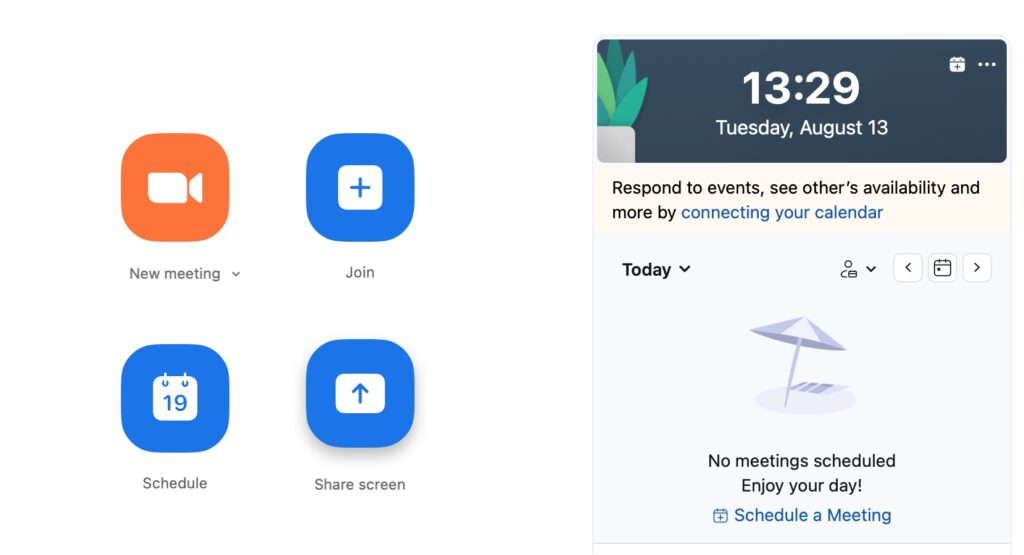
Tap or click on the (blue) link and the Zoom application will start and the following will be displayed.
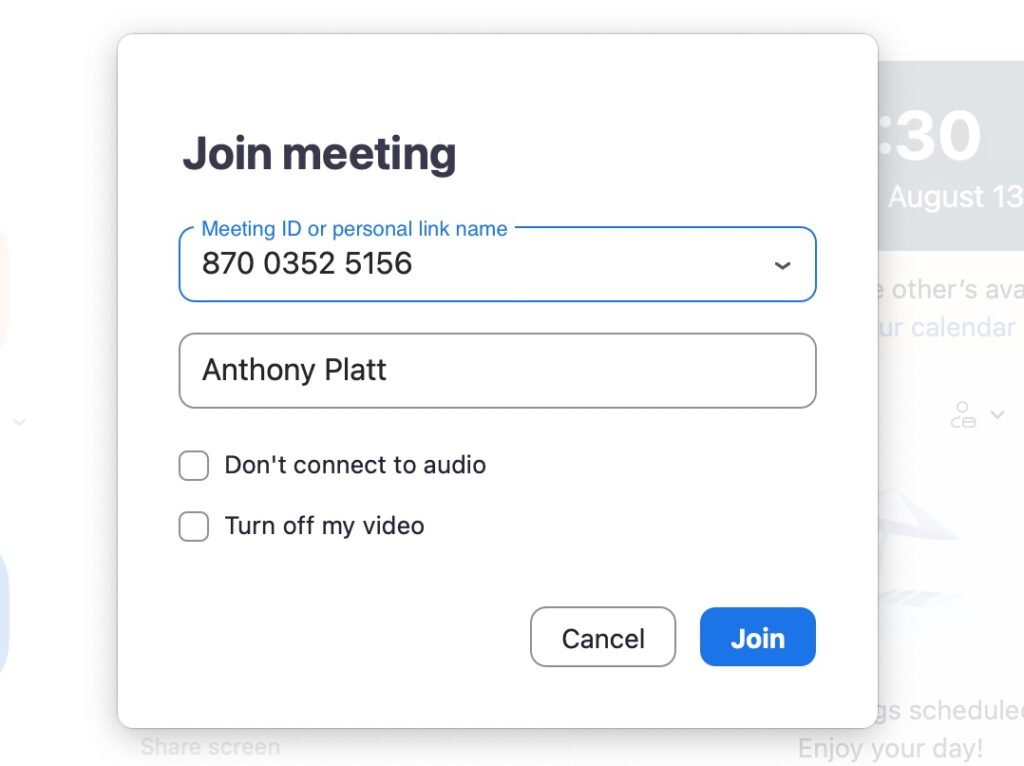
Click or tap on the Join icon and then the following Join meeting screen will be displayed.
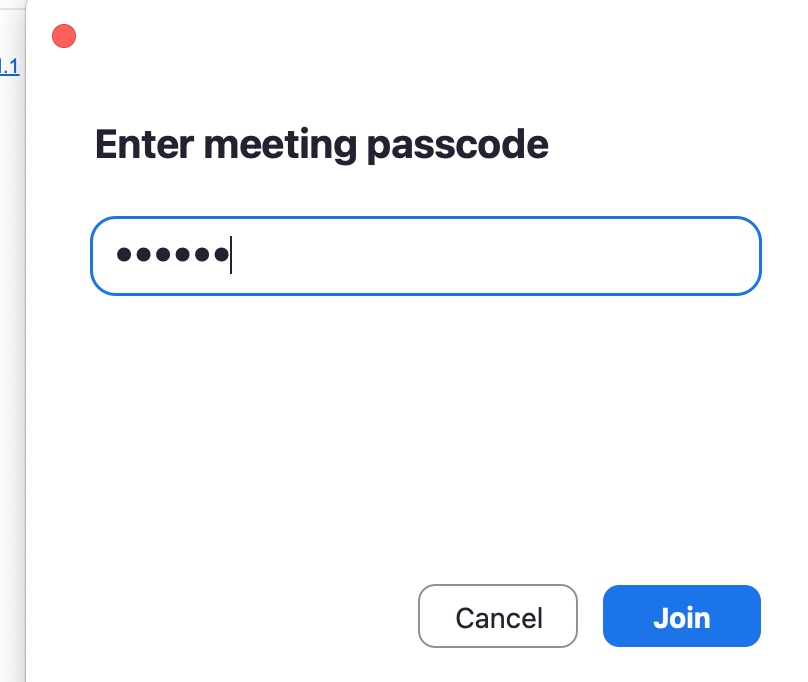
Enter the Meeting ID and your name the the boxes as shown and then tap or click the Join button to display the Enter meeting passcode screen as shown now.
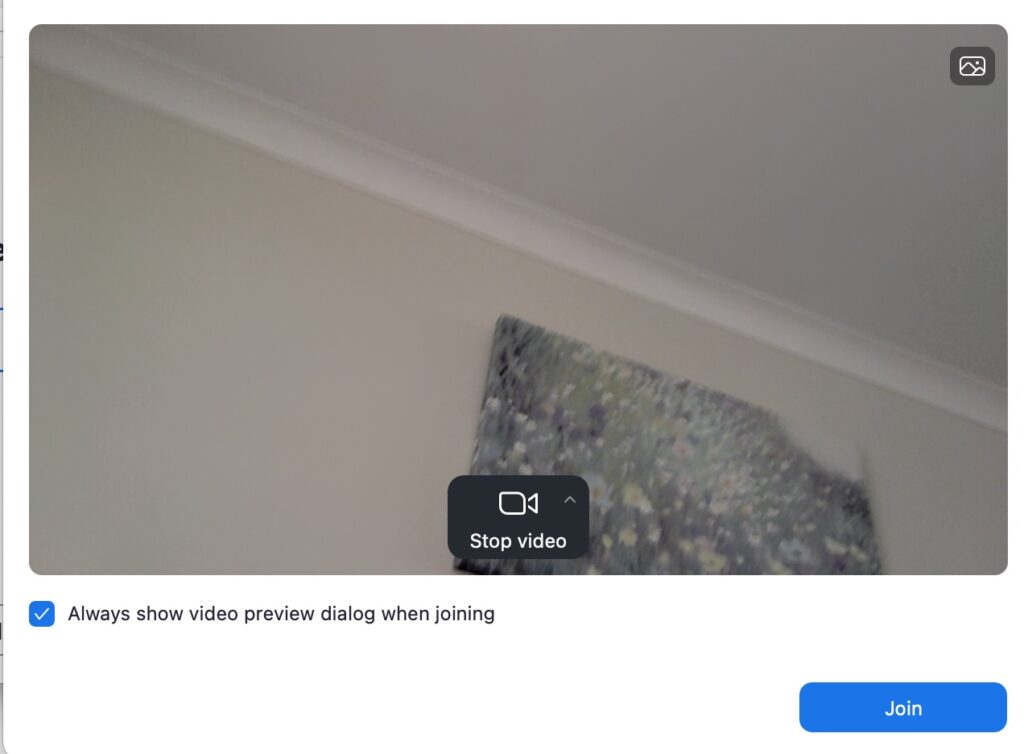
Once you have entered the meeting passcode tap or click the Join button. Assuming Share you video is the default setting for your Zoom application the screen will show the camera video as follows. Click the Join button again.
If you do not have Share your video as your default for Zoom meetings then the screen will dark and enable you to turn on your video, which you should do before you tap or click the Join button.
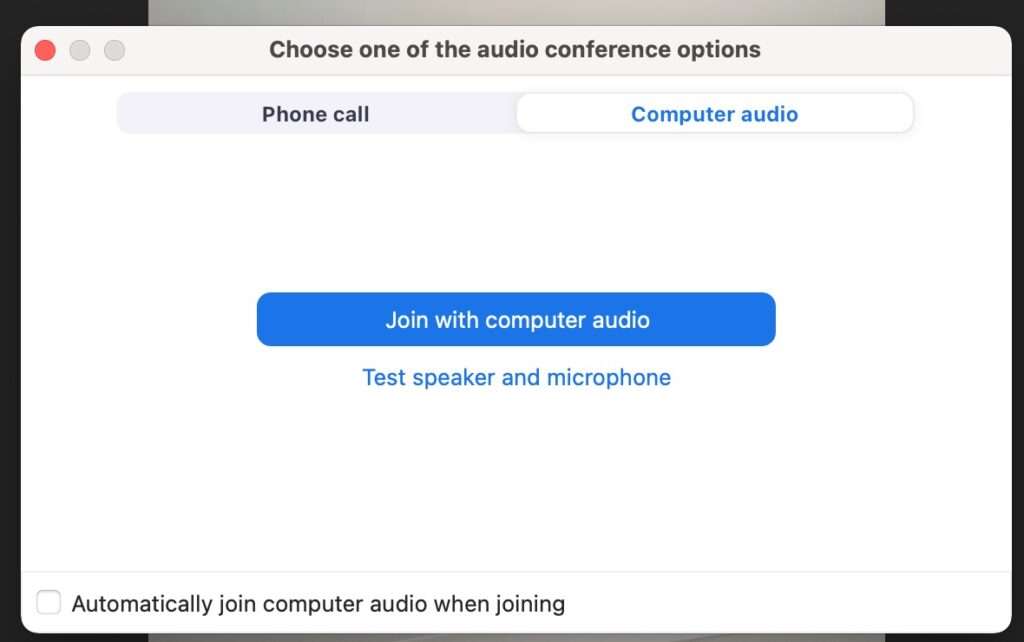
The following screen will be displayed next and you should join with computer audio as shown now by tapping/clicking the Join with computer audio button.
You will then enter the meeting with video and audio.
At some meetings you may have to “wait in a lobby” for the meeting organiser to let you in.